


Tuning
The second tab of the "Instrument..." dialog deals with the instrument tuning assigned to the current module. Incidentally, it allows you to adapt an existing partition to another instrument very easily. You can also open this tab by clicking on the instrument tuning displayed at the far left side of the tablature.
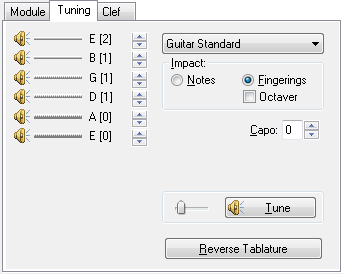
Individual string tuning
At the left of the dialog you'll find a "stack" of speaker icons with horizontal lines to the right of them. These represent the strings of the current instrument. Although the illustration above is for a standard, 6-string guitar, if another number of strings has been selected in the "Module" tab of the dialog this will, of course, be reflected here.
Left-clicking on any of the speaker icons (or the strings, themselves, for that matter) will cause the note to which it's set to sound. The note will sound longer if you keep the left mouse button held down. This is very handy for tuning your own instrument to the computer.
The name of the note to which the string is set displayed to the right of each string. Next to the note name, you'll find the octave number (according to the American system) displayed within square brackets.
Left-clicking on the small arrows to the right of these items allows you to raise or lower the pitch of the string. Keeping [Ctrl] held down while performing this operation will allow you to change the pitch of all of the strings in a single operation.
Predefined tunings
Further to the right, you'll find a combo box containing a variety of common (and a few uncommon) tunings. Selecting any of these will automatically alter the settings applied to the strings. If you should select a tuning not corresponding to the current number of strings, TablEdit will change this number after asking you for confirmation.
TablEdit can manage up to eight user-defined tunings. The slots for these custom tunings are marked with an asterisk (*) and are located at the bottom of the list of pre-defined tunings. To add a custom tuning to the list, just modify the current tuning to the desired values and click on the custom slot you want it in while keeping [Ctrl] held down. The resulting dialog also allows you to specify a name for your tuning.
Custom Tab Instrument
Among the predefined tunings, the "Custom Tab Instrument" tuning has a very special function. It allows you to freely define how the fingerboard, table or keyboard of the instrument is physically organized. You can define a hammered dulcimer (cymbalum), an instrument with partial capos, a chromatic harmonica, etc. When you select this tuning, the "Instrument configuration" button that appears opens the dialog box."Instrument Configuration".
Impact
For an existing score, it's useful to be able to specify if the changes are to affect the notes (default) or the fingerings. If you select "Impact> Notes" (default), only the note values will be changed. If "Impact> Fingerings" is selected, the fingerings will be adjusted so that the sound output doesn't change.
The "Octaver" Option allows you to tranpose the notes in order that they fit in the new selected tuning.
Capo
Below the tunings popup is a small box labeled "Capo". This allows any capo setting between 0 (no capo) and 15. By default, the addition of a capo affects both the pitch of MIDI playback and the note pitches of the standard notation. The fret numbers of the tablature remain unaffected. Care should be taken to adjust the "Key signature" to reflect the addition of the capo so that the correct accidentals will be used in the stave. If, for example, you've tabbed out a tune played in the key of C but have specified a capo at the second fret, you should enter a key signature of D major (two  's) as this is the key that the piece actually sounds in. There is, however, an exception to this. Tablature readers usually read the capo as if it were the nut of the instrument, notation readers do not. This means that the tablature reader considers the "playing" key of a tune rather than its "sounding" key. This can lead to some confusion if the two aren't the same, as in the example quoted above. To avoid this, there is a "Capo doesn't impact Notation" option in {File | Options}>Advanced That allows a capo to be applied without affecting the key used in the notation. If you select this option, a tune played in the key of A minor will also be notated in A minor irregardless of any applied capo position. Again, care should be taken to set the correct key (in this case A minor) in the "Key signature" dialog.
The chords deduced by the "Automatic Chord Diagram" (see Display options) function will remain in the actual playing key rather than being transposed to the playback key.
Reverse Tablature
This button allows you, if you are left-handed, to reverse the strings of the module. If the module contains customized chord diagrams, they will also be reversed.
Tune
[Tune] plays each string of the selected tuning successively, allowing you to tune your instrument to TablEdit. The slider to the left of the button allows you to adjust the speed of the playback. It should be noted that if {MIDI | Repeat} has been selected the sequence will be repeated until stopped by clicking on [Stop].
Since its beginnings, TablEdit has evolved to include instruments other than the standard, fretted instruments usually associated with a tablature program. The use of the software in connection with these instruments requires special comment.