


Printing
This dialog allows you to select a variety of elements for inclusion on your printouts. It also allows you to set a specific scale for the overall size of the printout.
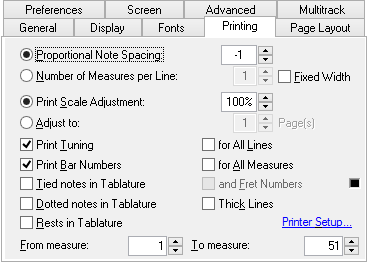
Proportional Note Spacing
This value sets the horizontal spacing between notes in both the tablature and the stave. This allows tablatures to be expanded or condensed to some degree. To vary the distance between one note and the note following it, insert an offset marker.
Number of Measures per Line
This allows you to set the number of measures to be printed per line of tablature. Keep in mind that too high a number of measures per line will result in the tablature "bunching up" and make it harder to read. Four or five measures is about right for standard paper sizes. This generally results in a slightly larger number of pages for the printout. If the option is selected, the "Proportional Note Spacing" value described above has no effect. TablEdit automatically skips over pick-up measures when printing bar numbers.
If the "Fixed Width" option is selected, TablEdit will produce measures of identical width (like those you see on the screen) taking only the intervals of the tablature into account.
Print Scale Adjustment
This setting affects the character and stave/tablature size of your printouts. Setting it to a value other than 100% allows you to increase or decrease the print size by degrees in order to optimize paper use or to increase it for greater legibility, e.g. when printing out chord sheets. The available settings range from 33% to 133% of the original size. If you choose to define this variable as other than 100%, measure size as expressed in millimeters will, of course, have only relative significance.
Adjust to ... Pages
This variable tells TablEdit to adjust the size of the printout to fit within the indicated number of pages. This option is incompatible with the preceding one.
Print Tuning
Causes the tuning to be printed next to the corresponding strings to the left of the first row of tablature. The "for all Lines" check box causes the tuning to be printed for each staff.
When the "Print Tuning" option is not checked, the legend of the "for all Lines" checkbox becomes "No TAB". Checking it avoids the usual vertical "TAB" symbol to be printed. If the current instrument is a PSG, the caption becomes "String #" : this option then allows to display the line numbers instead of the tuning.
Print Bar Numbers
Causes the appropriate bar (measure) number to be printed above the first measure in each row of tablature as a reference. "for All Measures" causes the measure number to be printed above each measure on printouts.
Tied notes in Tablature
This two-part option controls the way tied notes are displayed (or not displayed, as the case may be) in the tablature. The setting made affects only printouts. If the option is left unselected, tied notes aren't indicated in the tablature at all. The space they occupy is simply left empty.
If the option is selected but the "and Fret Numbers" sub-option is not, the presence of tied notes will be indicated in the tablature only by the presence of the conventional connecting arc. This will simply end in "thin air", so to speak. The final combination is to select both the main and the sub-option. This will display both the tie arc mentioned above and the fret number of the tied note in the appropriate position. The latter is displayed in a smaller size. The small case at the left sets the color to be used to display the tied notes in the tablature.
Dotted notes in Tablature
When selected, dotted notes are displayed in the tablature in the same way as they are in the stave.
Thick Lines
Causes TablEdit to print thicker lines for the note stems and the systems.
Rests in Tablature
When selected, rests are displayed in the tablature in the same way as they are in the stave. This affects both automatic and manually inserted rests.
The last item on this tab is [Printer Setup]. Clicking on this button opens a standard Windows dialog allowing you to select paper size and orientation.
From measure... To measure...
This allows the printing of selected measures. Simply enter the number of the first measure to be printed into the "From measure:" field and the number of the last measure to be printed in the "To measure:" field.
See also: http://el-kay.com/tabledit/en/PrintOptions.htm & http://el-kay.com/tabledit/en/PrintFormats.htm